Collaboration
Enabling contacts to have collaborative access to documents in SharePoint through Practice Gateway. Access to the files is restricted to only approved clients emails, and will require authentication through Microsoft to gain access.
Usage Notes
NOTE: Document Collaboration will only be functional for contacts with email addresses which are not users within the environments tenant. For example, a User or Guest in the T-Tech tenant will not be able to utilise document collaboration within T-Tech Portal.
Model Driven App (User View)
-
Create a connection from a Portal Contact to a Non-Portal contact with the role “RandD – Data Approver” or “RandD – Data Provider”.
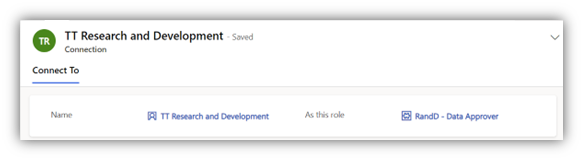
- This will grant collaborative access for any existing documents within the Non-Portal Contact’s “Research And Development” Practice Gateway folder.
- Any new files that are uploaded in the Research and Development folder, will also grant collaborative access for all “RandD – Data Approver” & “RandD – Data Provider” connected contacts.
-
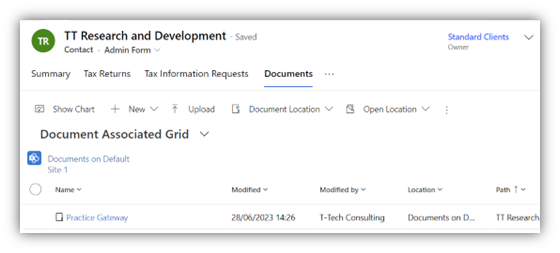
To access the Research and Development folder in the model driven app, navigate to the contacts documents.
-
Open the Practice Gateway folder.
-
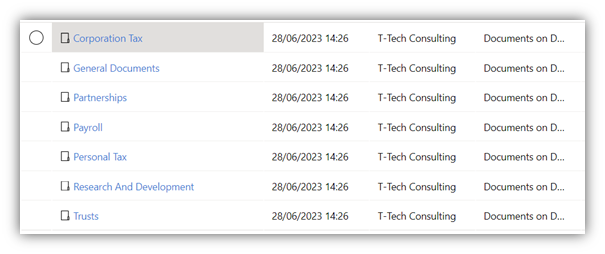
Open the Research And Development folder.
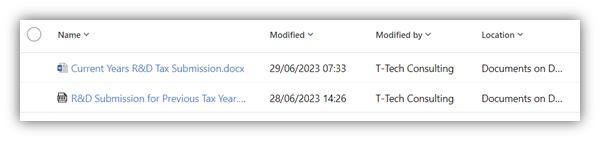
- Only Users within the “RandD” SharePoint group are able to see and access the Research and Development folder. This list of users is updated from the Practice Gateway “R&D” team.
Note: If a Contact needs access to a Non-Portal contacts Research and Development folder, as well as their R&D Dashboards, they will require 2 connections to the Non-Portal contact. One connection of type RandD and a Dashboard – R&D connection.
Practice Gateway Portal (Client View)
-
In Practice Gateway, Navigate to the Documents Page

-
Select the Organisation that the contact is connected to with the RandD role
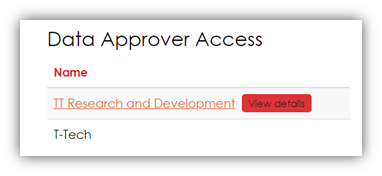
-
Select the Research And Development button to show the files in the Research And Development folder.
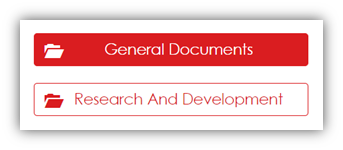
-
The Research And Development folder’s contents are displayed. Select a file.
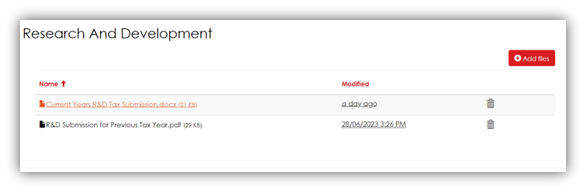
-
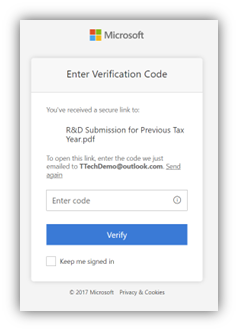
A new tab will open, requesting a verification code. This will be pre-populated with the client’s email.
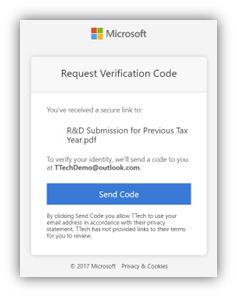
-
Press the Send Code button, this will send a verification code to the contacts email. Which they can enter and press verify. This will then redirect them to the file so they can collaborate.
Testing Advisory
With a Contact who has either a “RandD – Data Approver” or “RandD – Data Provider” connection.
- Log into Practice Gateway, connect to the RandD Corporate contact, then access the R&D folder.
- When a file in the grid is selected, check that access to collaborate on the file it enabled.
Note: Internal EP emails, will already have access, so an external email must be used to test functionality