Hide Contact Documents
Hide My Documents section for corporate contacts based on setting. Allowing for clients to use a tidier UI and means they aren’t seeing an empty list without any context. Also means that a User can decide whether to send files directly to an individual, or only to a business that the individual can upload to. Prevents files from being uploaded to the wrong location which could pose a potential data risk.
Reqirements
Functional
- Hiding the My Documents section for non-client individuals when a site setting is enabled.
Components
Accountancy Portal
- Settings
- Feature/HideMyDocuments
Portal Records
- Site Setting
- Feature/HideMyDocuments
- Web Template
- Contact Documents - Contact
Accountancy Portal Flows - Core
- Cloud Flows
- Feature - HideMyDocuments - Cascade Settings
- On Environment Value Change - Cascade Changes
Usage Notes
-
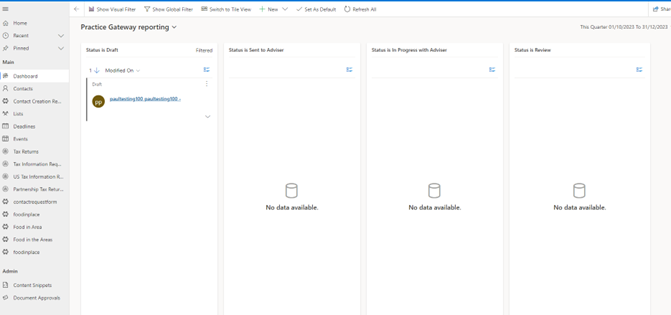
To create a contact navigate to Contact Requests on the left.
-
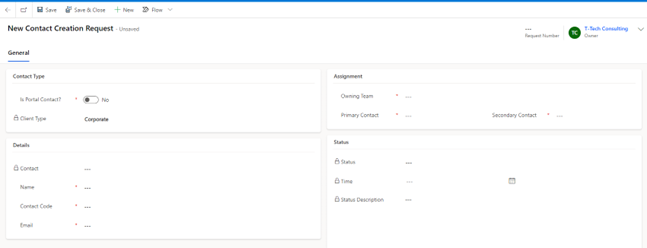
Set portal contact to No, set the owning team to any team that’s not a Trusts or R&D.
-
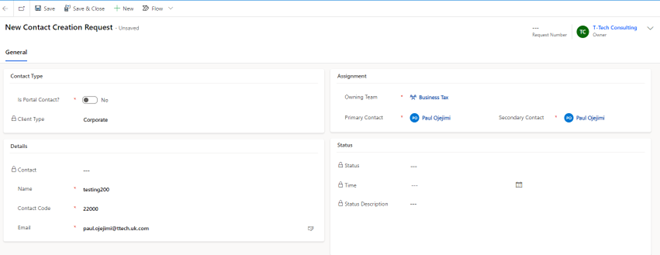
Populate the rest of the fields and then click Save & Close.
-
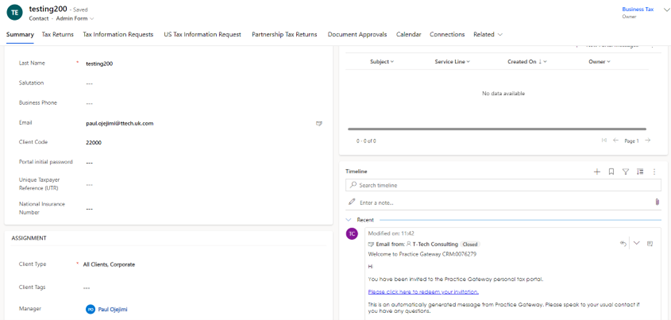
Navigate to contacts and find the new contact that was created send a personal invitation to the contact and click the link.
-
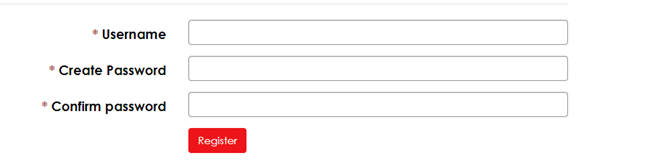
Once the link has been clicked it should display the portal username and password. Populate the fields and then click register.
-
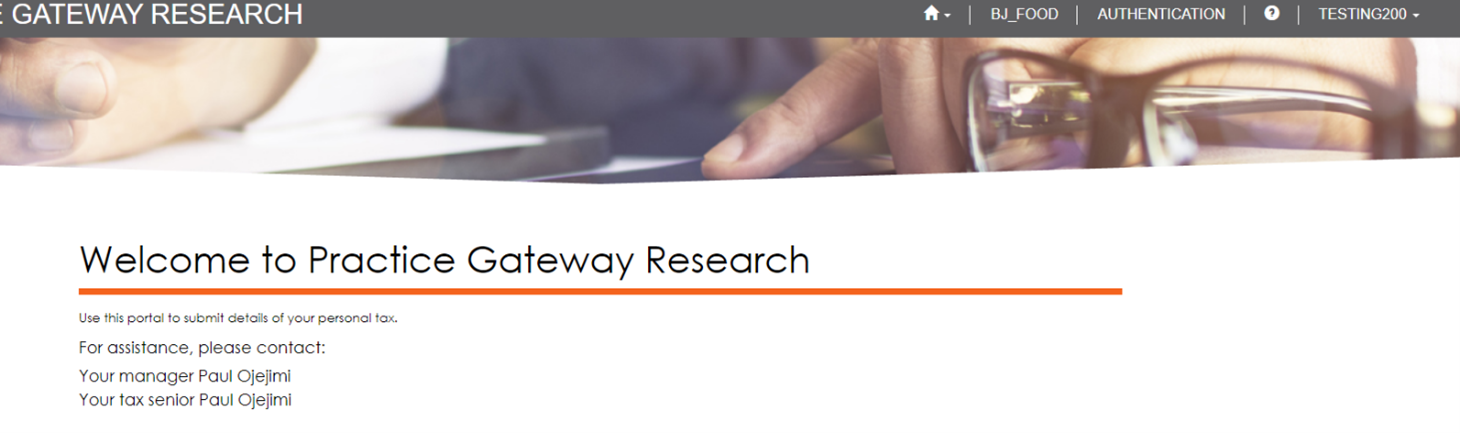
Once the button has been clicked it should display the portal and the Documents tab on the top should be hidden.
Testing Advisory
Portal
- For an individual that’s not a Standard Client and US Tax, ensure hide my documents tab is not visible.