Security
An overhaul of the Documents section of Practice Gateway, to segment files into separate folders which have 2 levels of permissions.
- Portal: In the portal, a client is only able to see folders depending on what client they are, or what connections they have to another client.
- MDA: In the Practice Gateway Model Driven App, Users are only able to see folders depending on their SharePoint permissions
List of data protection implications, considerations, and dependencies:
- With the backend pointing at the ‘Practice Gateway Folders’ in within the Client folder, if a clients files are not moved into one of the ‘PG Folders’ then the client will not be able to see them.
Usage Notes
Model Driven App
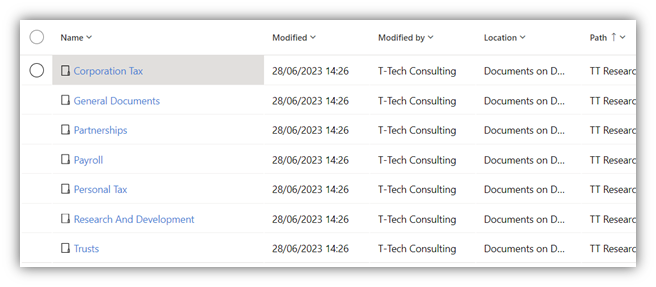
- When a new Contact is added to Dynamics 365, Practice Gateway folders are created in SharePoint.
- Practice Gateway
- Corporation Tax
- Tax Information Requests
- General Documents
- Partnerships
- Payroll
- Personal Tax
- UK Tax Returns
- US Tax Returns
- Research And Development
- Trusts
- Any new UK Tax Return records have their document folders provisioned within the UK Tax Returns folder.
- Any new US Tax Return records have their document folders provisioned within the US Tax Returns folder.
- Any new Tax Information Request records have their document folder provisioned within the Tax Information Requests folder.
- Corporation Tax
NOTE: User access to the Practice Gateway folders is restricted by groups within SharePoint. This restriction is based on the Teams for Practice Gateway.
-
To view a contacts Practice Gateway folders, open the Contact record and select Related -> Documents.

-
When a file is uploaded to an organisation folders. An email notification is sent to the relevant contacts based on their connections to the organisation. The exception for this is General Documents, which alerts all contacts who are connected with an Organisation.
Portal
Scenario A – Personal Tax User
-
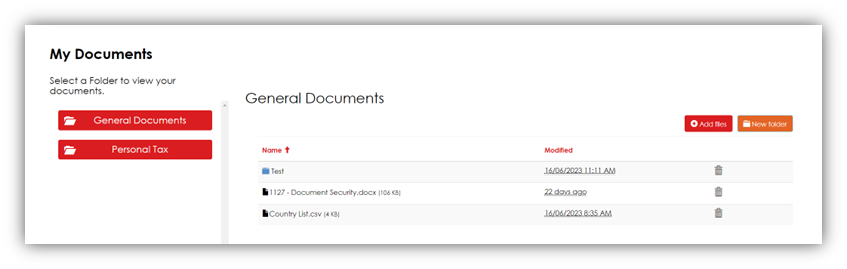
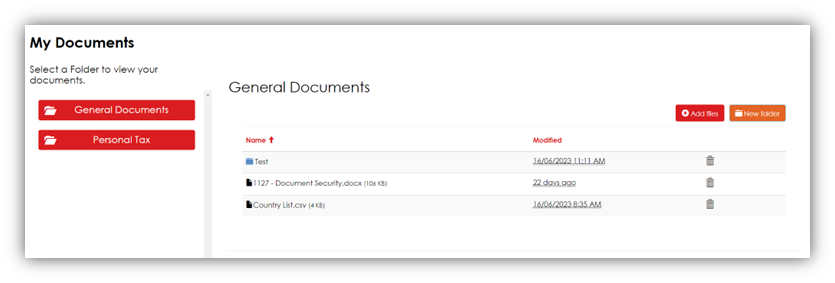
When a Personal Tax contact logs into Practice Gateway and navigates to their documents, they will have 2 folders available. General Documents & Personal Tax
-
General Documents are generic documents for the contact.
- If another contact is connected to a contact, the General Documents folder is available by default.
- This area should not be used for any private files when multiple contacts are connected.
-
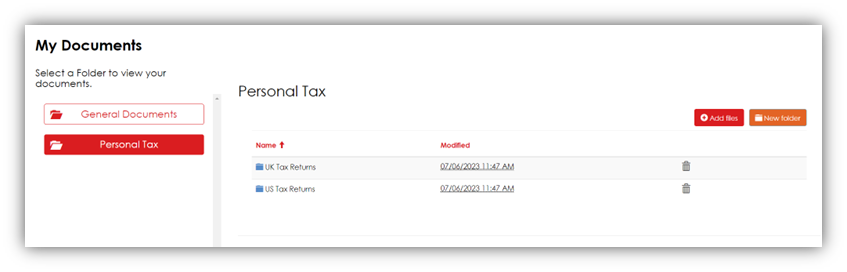
Personal Tax contains the files for any Tax Returns that the client has, as well as being a storage section for any other Personal Tax files, which don’t relate to a specific tax return.
-
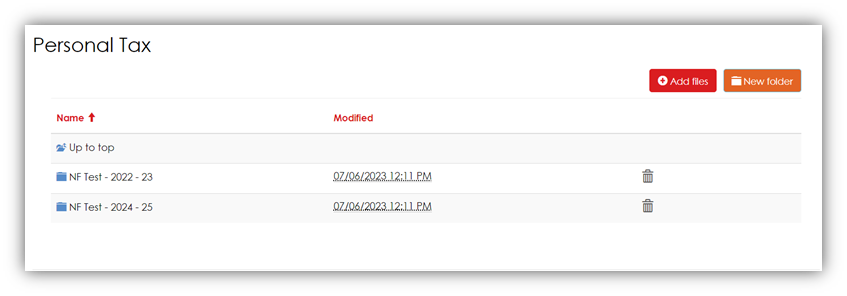
Within the UK Tax Returns folder, a contact can access the same files that they would be able to access directly from a Tax Return record.
Scenario B – Basic User
-
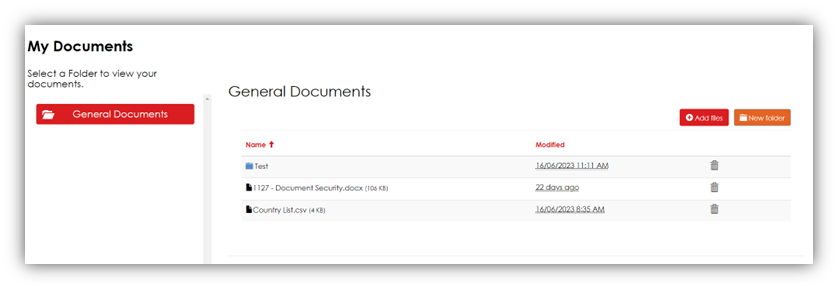
When a Basic User logs into the Practice Gateway portal, they will only have access to the General Documents folder
Scenario C – Connected Contacts
-
When a Contact logs into the portal and they are connected to another contact or organisation. They will have access to their own Documents (depending on the scenarios above).
-
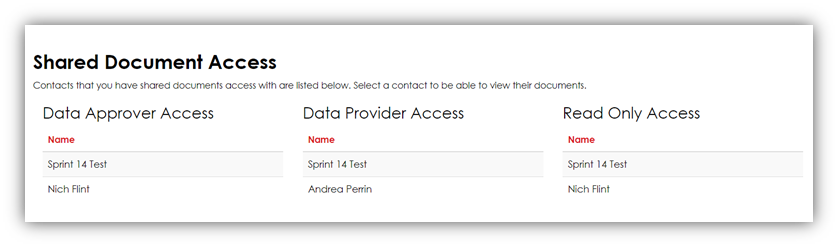
The contact will also be able to select a contact which they are connected to, in order to access their documents, depending on permissions.
-
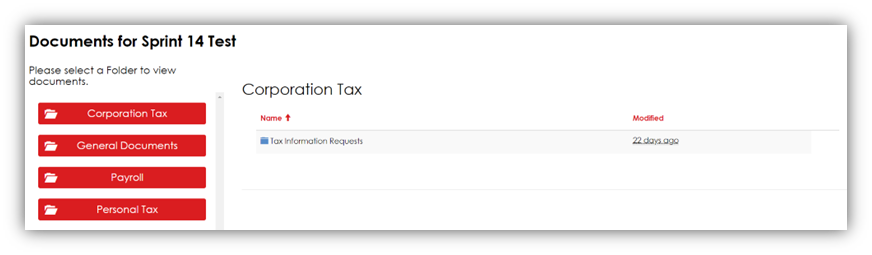
The Shared Documents page works similar to the Documents page for the contact. They are only able to see folders depending on their connections.
- If the permission is Read Only, the contact is not able to upload documents
-
If a contact has their connection removed, access to the folder is also removed.
-
When a contact uploads a file to a Folder, the relevant team is notified via email.
Testing Advisory
MDA
- Create a Contact through the Request Form (Set as an Individual to the Standard Clients team)
- Once the contact has been created, check that the Practice Gateway Folders have been created in their Documents Section.
- Create a Tax Return for the contact
- Once the Tax Return has been created, wait 30 seconds, then go back to the Contact record, and check the Tax Return folder has been created within the Individual Tax Returns folder.
- Create a US Tax Return for the contact
- Once the US Tax Return has been created, wait 30 seconds, then go back to the Contact record, and check the US Tax Return folder has been created within the US Tax Returns folder.
- Create a Tax Information Request for the contact
- Once the Tax Information Request has been created, wait 30 seconds, then go back to the Contact record, and check the Tax Information Request folder has been created within the Tax Information Requests folder.
Portal
- Check Documents Permissions in the Portal as an individual contact, as well as contacts with connections
- Mobile Testing of the Portal